Rollback-first recovery
Palworld save repair that protects every recovery point first.
Palworld save repair should begin before any file is rewritten. Stop the game or server, preserve the active WorldID folder and every timestamped backup, then compare the active set with one complete candidate. Pal Save Editor ranks that candidate from visible health, completeness, size, signatures, and file changes. It does not rewrite the save or estimate lost in-game progress.
Compare your current save with a backup
Open the active world first. You can then add a complete recovery candidate without changing either source.
Snapshot comparison and recovery-candidate evidence are available. Binary repair and automatic restore are not.Quick answer
Palworld save repair: what to know first
- Stop launches and autosaves before inspecting files; backup rotation can overwrite the best remaining recovery point.
- Copy the complete WorldID folder or Game Pass WGS folder, including Players and metadata, before moving any file.
- A parser error such as EOF not reached can mean version mismatch rather than a corrupt game save.
- Use the two-snapshot workbench to compare health, required files, size, signatures, and hashes before choosing a candidate.
- Test a restored copy and verify players, guilds, bases, Pals, inventory, technology, and map state before making it permanent.
What Palworld save corruption can actually mean
A world that will not load can come from a truncated Level.sav, cloud-sync conflict, mismatched Players directory, partial server copy, failed update, or a repair tool that cannot decode the current save format. Those problems produce similar symptoms but need different responses.
Start by separating game failure from tool failure. If Palworld still loads the original but a converter throws `EOF not reached` or `PlM instead of PlZ`, the save may be valid and the tool may be behind the format. If the game itself returns to the menu, shows no world, or creates a new character, investigate the complete file set and identity map.
| Symptom | Likely evidence to inspect | First safe action |
|---|---|---|
| World is missing from menu | WorldID folder, LevelMeta.sav, cloud sync | Preserve active and backup folders |
| Load returns to menu | Level.sav size, format, matching backups | Compare complete recovery points |
| World loads, character is new | Players files, PlayerUID, GUID mapping | Stop server and preserve both identities |
| Tool reports EOF not reached | Tool version, RawData path, trailing bytes | Treat as parser mismatch until proven otherwise |
| Tool reports PlM instead of PlZ | Oodle container support | Do not rename or re-save the file |
Use a rollback-first Palworld save repair order
The recovery order matters because each launch can create another autosave or rotate older backups. Make copies outside the active save tree first. Do not delete, rename, or overwrite the failing world while you are still deciding which evidence belongs together.
Compare candidate folders by timestamp, total bytes, Level.sav size, number of Players files, metadata presence, and readable container signature. The strongest candidate is the newest complete set that preserves the identities and assets you care about, not automatically the largest or newest single file.
- 01
Stop every writer
Exit Palworld, stop the dedicated server, and pause cloud synchronization if it is actively replacing files.
- 02
Freeze the active world
Copy the full WorldID or WGS folder to a dated location outside the live save directory.
- 03
Collect complete backups
Keep Level.sav, Players, metadata, world options, and backup timestamps from the same snapshot together.
- 04
Rank the candidates
Compare completeness, file count, size, signatures, player coverage, and known last-good time.
- 05
Restore as a test
Use a separate slot or disposable server copy when possible, then verify the world in game.
Compare the whole Palworld recovery point
Replacing only Level.sav can make a world appear to recover while disconnecting player identity, guild membership, Pal ownership, storage locks, or base references. A complete Palworld recovery point includes the world and the matching player and option records that were written around the same time.
Pal Save Editor's two-snapshot workbench records both file sets locally, compares file roles, total bytes, signatures, hashes, and issues, then recommends a complete candidate only when its visible health is at least as strong as the active set. It does not upload the raw folder, parse game progress, or replace either input.
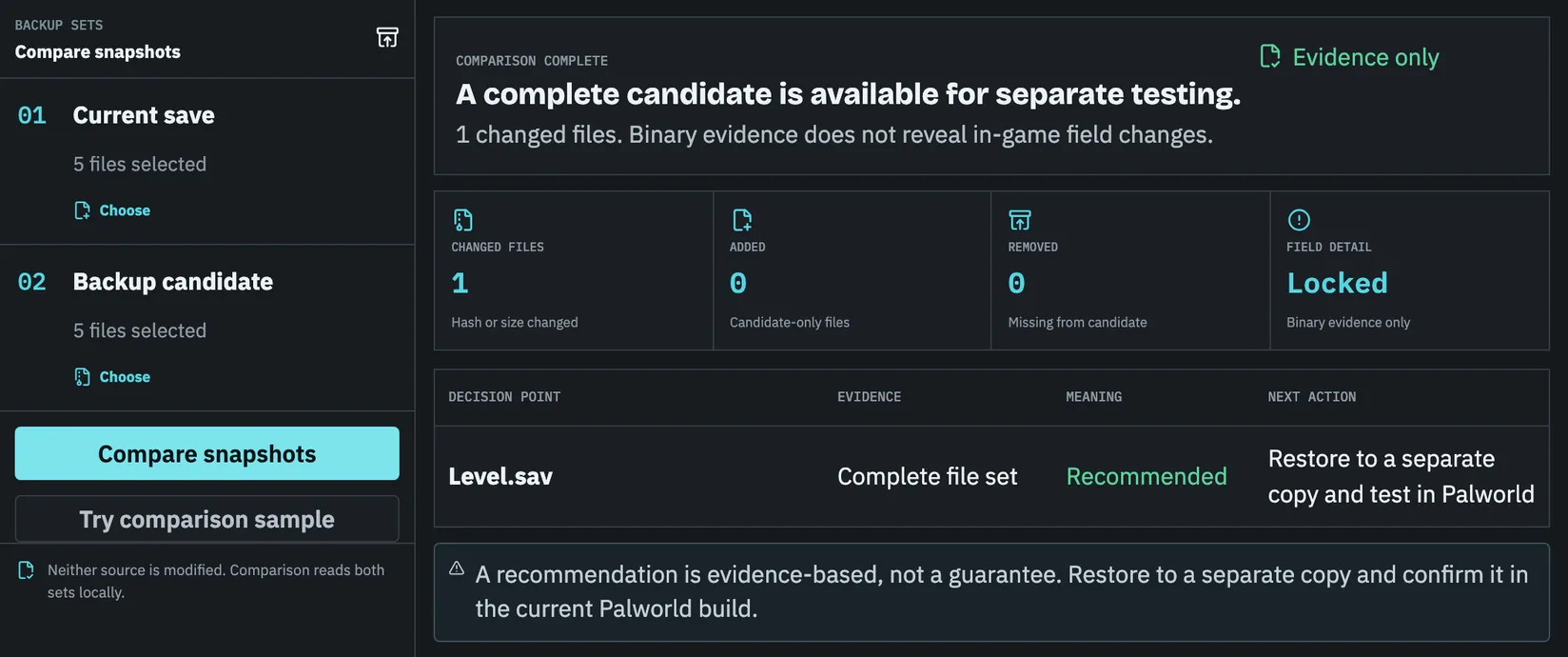
Know when a repair tool should refuse to export
A PlM signature without a compatible Oodle path, an unknown header, a missing Level.sav, an unexpectedly tiny file, unconsumed bytes, or broken player references should block automatic export. Turning those failures into warnings shifts the risk to the user without preserving evidence.
The useful outcome in that state is a diagnosis, not a guessed file. Keep the original untouched, save the error fingerprint, record the game and tool versions, and look for a verified parser or a complete backup. Post-1.0 reports show failures in specific RawData paths, so affected tools can fail even when the outer container looks familiar.
Verify the repaired Palworld save before retiring backups
A successful menu load is only the first checkpoint. Log in with the affected accounts and verify player level, inventory, technology, Pals, guild membership, bases, map progress, fast-travel points, and world options. On a multiplayer world, ask more than one player to confirm because a host can look correct while another identity still points at a new Players file.
Keep the previous active folder and the chosen recovery point until those checks are complete. Record the test date, game version, restored snapshot, and any remaining loss. That turns a one-off repair into a reproducible recovery procedure for the next crash or update.
Task checklist
- 01Stop the game, server, and active synchronization before copying files.
- 02Preserve the full active world and every candidate backup outside the save location.
- 03Compare Level.sav, Players, metadata, world options, timestamps, and signatures together.
- 04Treat parser errors as tool compatibility problems until the game file is proven corrupt.
- 05Test a restored copy and verify every high-value object before deleting any recovery point.
Questions people ask before touching the save
Should I delete the broken Level.sav first?
No. Move or copy the full world folder to a safe location first. Deleting the active file can remove the best remaining evidence.
Can Palworld Save Editor repair every corrupted save?
No. It can diagnose file-set problems, signatures, suspicious sizes, and recognized file roles. Binary repair export remains blocked when the parser or validation path cannot prove a safe rebuild.
Can I restore only one player file?
Sometimes, but only after confirming its PlayerUID, GUID, guild, ownership, and world references still match the selected Level.sav and migration state.
Does a larger backup mean it is better?
Not by itself. Size is one clue. Completeness, timestamps, player count, readable structure, and actual game loading all matter.